
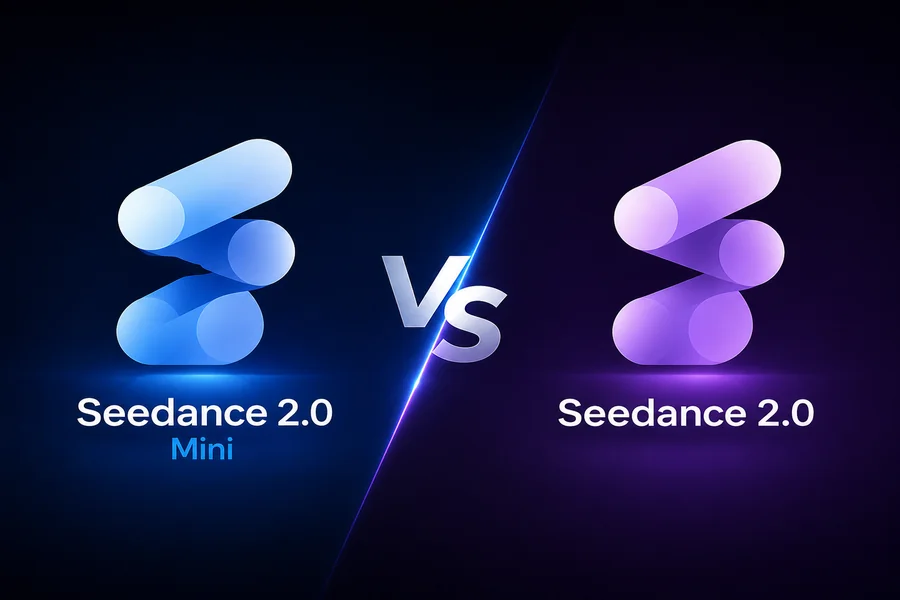
Small production desks often keep the cut in one tool and the render in another. The hand-off looks orderly until a 1080p master is priced like a draft, or a draft is queued at master settings because nobody wrote the resolution down. A Seedance 2.0 API job does not remove that risk. It moves the number onto the create panel, where a buyer can read it before the clip exists.
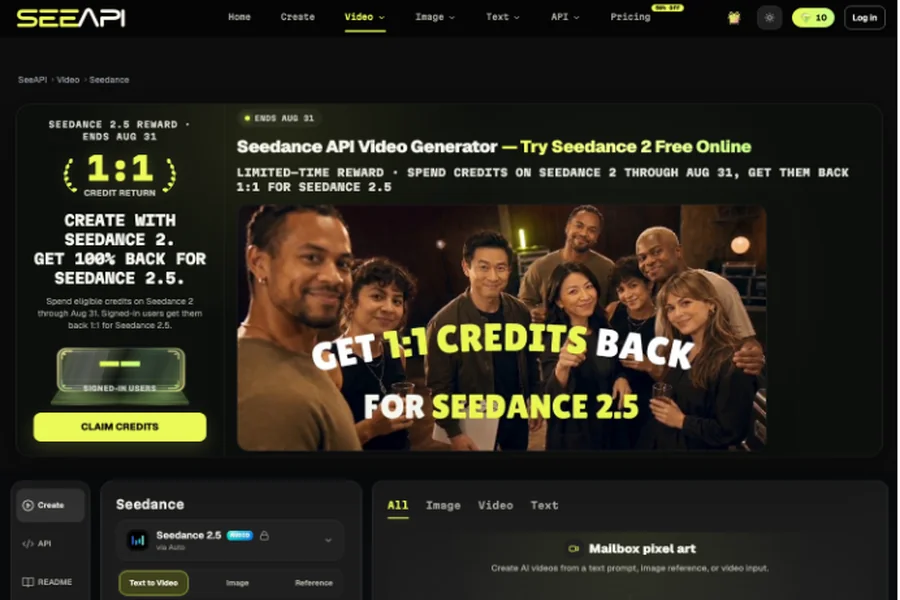
Compare one workspace with a split queue, and ignore the brochure language. Seedance shows Fast, Quality, and Lite as named options, and the generate panel prints Required Credits for the model and resolution currently selected. A separate queue often prints that number later, in a ledger the editor does not see. Ask which arrangement makes a wrong resolution expensive before anyone generates.
What A Split Render Queue Hides
In a split queue, the editor asks for “the nice one” and the operator picks a preset. Resolution, duration, and model live in three notes. When the invoice arrives, the desk cannot point to a single screen that showed the cost. The rework is a meeting: which version was the draft, and who approved 1080p for a story test. Time goes into the argument, not into a better prompt.
That failure is ordinary on a small desk. There is no producer whose only job is the rate card. The person who writes the product line is also the person who exports. If the cost is invisible until the queue clears, the desk will keep ordering the highest resolution because it feels safer. Safe, here, means expensive and slow.
Where The Hand-Off Loses The Brief
The brief dies in the gap between tools. A still, a line of copy, and a note that says “make it move” are not a prompt. The page asks for subject, scene, camera movement, lighting, mood, action, style, and visual direction. A queue that accepts a filename instead of that prompt will return a clip the buyer has to reject, then pay to run again. The lost object is the brief, not the software logo.
Why Drafts Inherit The Master Settings
Once a preset is named “final,” people reuse it. A three-second concept test inherits the resolution of last month’s master. The panel on this studio fights that habit by keeping 480p, 720p, and 1080p as visible buttons next to the prompt. A queue that hides them in a dropdown default does the opposite. The wrong button is the one nobody looks at.
How The Panel Prints The Cost
Read this as a public panel, not as a promise about every model. With Seedance 2.0 ULTRA via Auto selected, and the duration control left at 5, the Required Credits line changed with the resolution button. Each line showed a higher figure, a lower figure, and a 25% OFF mark. The 1.5 Pro card separately wears a 60% OFF badge. That badge is not the mark on this generate line, so it should not be mixed into the same arithmetic.
| Resolution on the panel | Figure shown first | Figure beside the 25% OFF mark | Sensible use at duration 5 |
| 480p | 100 | 75 | A rough motion check on a still or a line of copy |
| 720p | 227 | 170 | A review cut a client can watch without calling it finished |
| 1080p | 533 | 400 | A delivery candidate, after the 480p or 720p pass survived |
The jump is the point. From the lower 480p figure of 75 to the lower 1080p figure of 400, the same duration is more than five times the credit on this panel. At that lower figure, three 1080p trials are 1,200 credits, against 75 for a single 480p pass the desk could have rejected. That is the queue problem in one screen: the expensive button is one click from the cheap one, and nothing in the layout stops you. The stop has to be a rule.
Where The 2.0 Line Fits A Short Ad
The 2.0 card describes multi-modal input: text, image, video, and audio, with synchronized audio and reference-driven motion. The Fast card on the same picker is described as the quicker, lower-cost sibling, listed at 480p–720p and 4 to 15 seconds. The Ultra card is the one whose panel quotes are in the table above. A short ad does not need Ultra on the first pass. It needs a pass the buyer can throw away.
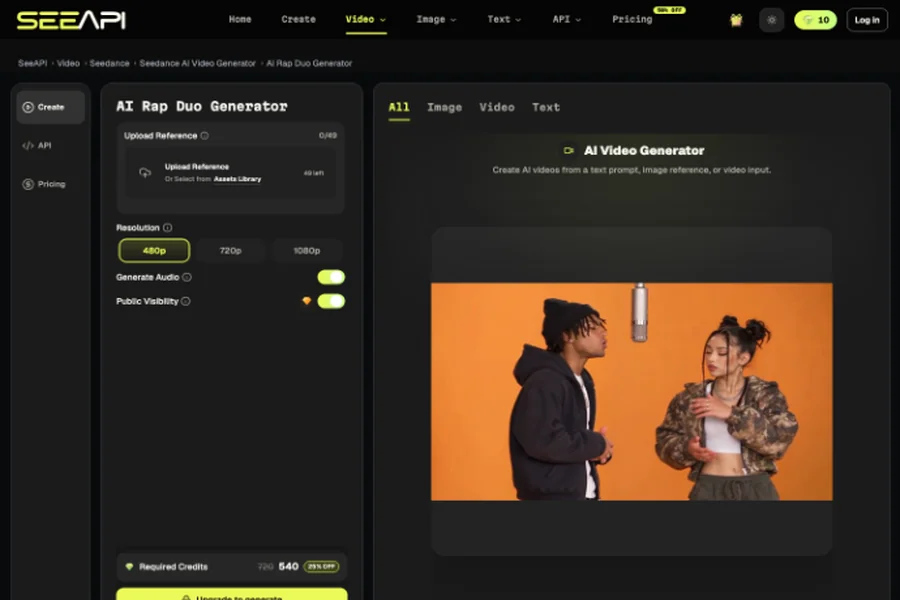
Duration is the other number people skip. The Ultra card lists a span of 4 to 15 seconds, and the Mini and Fast cards list the same span. The quotes in the table hold only while the duration control still reads 5. Stretch the shot toward the top of that span and the credit line has to be read again, because the panel prices the selection in front of you, not a remembered cell. A buyer who copies 75 into a spreadsheet and then sets a 15-second master has built a second queue out of a stale note.
A campaign week makes the rule concrete. Monday’s story test stays at 480p until the product and the action survive a watch with the sound off. The 720p line is for the cut a client will comment on. The 1080p line waits until the comment is about color or crop, not about a wrong label or a drifted hand. If the comment is still “that is not our bottle,” another 400 credits will not answer it. The fix is the still or the prompt, then a fresh 75-credit check.
Here a Seedance API trial is a buying step, not a slogan. Open the panel, leave duration at 5, and read the credit line at 480p before anyone talks about cinema. If the product still looks wrong at 480p, 1080p will spend 400 discounted credits to show the same mistake more sharply. The reference input matters more than the resolution: a bad still, driven harder, stays a bad still.
Fast Drafts Versus A Polished Pass
Fast, Quality, and Lite are the page’s names for the trade. Fast is the quick draft. Quality is the polished output. Lite is the cost-efficient draft. Map them onto the table without pretending they are the same button as 480p and 1080p. Resolution is a pixel choice. Fast versus Quality is an option choice. A buyer who collapses both into “high” will order Ultra at 1080p for a lyric test and then blame the model when the budget is gone.
A Buyer Check Before The Campaign
Use the panel as the rate card for this one setup. Write the rule in the job ticket so the queue cannot quietly upgrade the shot.
- Name the card: 2.0 Ultra, 2.0 Fast, or 2.0 Mini. Do not write “the good model.”
- Lock duration before comparing resolutions. These figures are for a duration reading of 5.
- Run the first motion check at 480p. Move to 720p only if the action is right.
- Open 1080p when the cut is a delivery candidate, not when the prompt is still a guess.
- Reject a clip whose subject drifts. A higher resolution does not repair a wrong face or a wrong product.
A separate render queue can still be the right tool when the grade, the titles, and the legal slate live somewhere else. The mistake is using that queue to hide the generate cost. If the operator cannot show the Required Credits line for the selected card, the desk is guessing.
Which Desk Should Stay On One Panel
Seedance, read this way, suits a buyer who will look at 75, 170, and 400 before ordering three masters. It is a weak fit for a team that wants a single “best quality” button and will not reject a drifted shot. Keep the split queue if picture finishing truly happens elsewhere. Do not keep it as a place to forget the resolution.
Select the card, read the credit line, and generate the cheap check first. The panel already prints the gap. A second tool is not required to see it.

Great article! For anyone curious about AI-powered daily tarot readings and card meanings, PiTarot is a nice free tool to explore. Thanks for sharing!